
Target: Ubuntu 24.04 LTS on a public VPS (Hetzner, Scaleway, DigitalOcean, EC2; the differences are noted where they matter). Everything below assumes you currently have root or a sudo-capable account over SSH and nothing else is protecting the box.
All IPs, hostnames and key blobs are from my lab. They're shaped like real values so you can see the intent. Swap them for yours before you run anything.
Before you touch a single config: open a second SSH session and leave it idle. Every lockout I've ever caused happened when I had exactly one session open and got confident. That second session is your rollback.
The order of operations matters
Do it in this sequence. Reversing steps 2 and 3 is how people lock themselves out:
- Create users and install keys
- Verify key login works in a new session
- Then harden
sshdand disable passwords - Firewall (with a timed auto-rollback armed)
- Fail2Ban
- Unattended upgrades
- Verify from outside the box
Users first: separate the human from the robot
Two accounts, two purposes. dkeller is a human who can become root. deploy is a service identity that CI uses and that can restart exactly three things.
#!/usr/bin/env bash
set -euo pipefail

# Human admin account
adduser --disabled-password --gecos "Danil Keller,,," dkeller
usermod -aG sudo dkeller

# CI/CD identity: no password, never interactive-login by a person
adduser --disabled-password --gecos "CI deploy account,,," deploy

# Group that gates SSH access entirely
groupadd -f sshusers
usermod -aG sshusers dkeller
usermod -aG sshusers deploy

# Application runs as its own user with no shell and no home login
adduser --system --group --no-create-home --shell /usr/sbin/nologin webapp-api

install -d -m 0755 -o root -g root /etc/ssh/authorized_keys
--disabled-password sets the password field to !, which means no password login is possible even if PasswordAuthentication gets flipped back on by a package upgrade. That's a belt-and-braces thing, and it has saved me at least twice when cloud-init reset the SSH config on a rebuild.
The sshusers group is the important part. Later, AllowGroups sshusers in sshd_config means every new system user, including one created by a compromised package postinst, is locked out of SSH by default. Deny-by-default at the identity layer, not just the network layer.
Note that /etc/ssh/authorized_keys directory. We're going to store keys outside user home directories so that a compromise of the deploy account can't append a new key and persist.
Keys: ed25519, generated on the client
# On your laptop, not on the server
ssh-keygen -t ed25519 -a 100 -C "dkeller@thinkpad-2026" -f ~/.ssh/id_ed25519_prod

# Separate key for CI. Never reuse your personal key for automation
ssh-keygen -t ed25519 -a 100 -C "gitlab-ci@webapp-api" -f ~/.ssh/id_ed25519_deploy
-a 100 sets KDF rounds for the passphrase-encrypted private key. It makes offline brute-forcing of a stolen private key meaningfully slower. Cheap, so do it.
Skip RSA unless you have to talk to something ancient. If you do need it, -t rsa -b 4096 and nothing smaller. ed25519 keys are shorter, faster to verify, and don't give you a knob you can set wrong.
Locking down authorized_keys
# /etc/ssh/authorized_keys/dkeller
restrict,pty,from="91.99.72.14,2a01:4f8:c17:2b3::/64" ssh-ed25519 \
AAAAC3NzaC1lZDI1NTE5AAAAIN4rTgQ2mWc8xhV1pKcO0dLbYxRfE7uHnPqA3sZjMk9T dkeller@thinkpad-2026
# /etc/ssh/authorized_keys/deploy
restrict,command="/usr/local/bin/deploy-hook",from="10.42.0.0/16" ssh-ed25519 \
AAAAC3NzaC1lZDI1NTE5AAAAIHqW2vYmB8dRk4LpXsN1cJfT9uZgAoE5yQbMhVwK0rDx gitlab-ci@webapp-api
chown root:root /etc/ssh/authorized_keys/*
chmod 0644 /etc/ssh/authorized_keys/*
restrict is the modern shorthand: it turns off port forwarding, agent forwarding, X11, PTY allocation and user rc files in one word, and (this is the part people miss) it stays safe as OpenSSH adds new features, because future capabilities are also disabled by default. Adding pty back afterwards re-enables just the terminal for the human account.
The command= on the deploy key means that key can only run the deploy hook. Whatever the client asks for lands in $SSH_ORIGINAL_COMMAND and is ignored unless your hook chooses to parse it. If a GitLab runner token leaks along with the key, the attacker gets one script, not a shell.
from= is the cheapest control on this list and the most frequently skipped. It's evaluated by sshd before authentication succeeds, so it works even if the key itself is stolen.
A note on CI source ranges. If you're running GitHub Actions or GitLab.com shared runners, the source IP space is enormous and changes, so pinning from= to it is theatre. In production I don't expose SSH to hosted runners at all. Either a self-hosted runner inside the VPC (10.42.0.0/16 above), or a WireGuard/Tailscale interface, or the runner pushes an artifact to a registry and the box pulls it. Pull beats push for anything internet-facing.
Scoped sudo for the deploy account
# /etc/sudoers.d/50-deploy  (chmod 0440, validate with visudo -cf)
Cmnd_Alias DEPLOY_SVC = /usr/bin/systemctl restart webapp-api.service, \
                        /usr/bin/systemctl reload webapp-api.service, \
                        /usr/bin/systemctl status webapp-api.service, \
                        /usr/bin/systemctl is-active webapp-api.service

deploy ALL=(root) NOPASSWD: DEPLOY_SVC
Defaults:deploy !requiretty
Defaults:deploy logfile=/var/log/sudo-deploy.log
Defaults:deploy log_input, log_output
visudo -cf /etc/sudoers.d/50-deploy && chmod 0440 /etc/sudoers.d/50-deploy
Every argument is spelled out. If you write deploy ALL=(root) NOPASSWD: /usr/bin/systemctl and stop there, you've granted root. sudo systemctl edit --full ssh drops the user into an editor running as root, and from there it's over in about four seconds. Same story with systemctl link pointing at an attacker-controlled unit file. Never leave a systemctl entry unqualified, and never put a wildcard anywhere near a sudoers rule.
visudo -cf before chmod is not optional. A syntax error in a file under /etc/sudoers.d/ breaks sudo for everyone, and if you've already disabled root SSH login, that is a rescue-console problem.
sshd: the config, and why each line is there
Ubuntu 22.04+ ships Include /etc/ssh/sshd_config.d/*.conf at the top of the main file. Drop-ins win because the first occurrence of a keyword wins in OpenSSH, so anything in an included file that sorts early overrides the defaults below it. Use that.
# /etc/ssh/sshd_config.d/10-hardening.conf

# --- Identity and access ---
PermitRootLogin no
AllowGroups sshusers
AuthorizedKeysFile /etc/ssh/authorized_keys/%u
StrictModes yes

# --- Authentication ---
PubkeyAuthentication yes
PasswordAuthentication no
KbdInteractiveAuthentication no
PermitEmptyPasswords no
AuthenticationMethods publickey
UsePAM yes
MaxAuthTries 3
LoginGraceTime 20
MaxStartups 10:30:60
MaxSessions 4

# --- Reduce the attack surface of a session ---
AllowAgentForwarding no
AllowTcpForwarding no
PermitTunnel no
X11Forwarding no
PermitUserEnvironment no
PermitUserRC no

# --- Session hygiene ---
ClientAliveInterval 300
ClientAliveCountMax 2
TCPKeepAlive no

# --- Logging (VERBOSE logs the key fingerprint used) ---
LogLevel VERBOSE
PrintLastLog yes

# --- Crypto (OpenSSH 9.6 on 24.04) ---
HostKey /etc/ssh/ssh_host_ed25519_key
HostKey /etc/ssh/ssh_host_rsa_key
KexAlgorithms sntrup761x25519-sha512@openssh.com,curve25519-sha256,curve25519-sha256@libssh.org
Ciphers chacha20-poly1305@openssh.com,aes256-gcm@openssh.com,aes128-gcm@openssh.com
MACs hmac-sha2-512-etm@openssh.com,hmac-sha2-256-etm@openssh.com
HostKeyAlgorithms ssh-ed25519,ssh-ed25519-cert-v01@openssh.com,rsa-sha2-512
Line by line, the ones that carry weight:
AuthorizedKeysFile /etc/ssh/authorized_keys/%u removes ~/.ssh/authorized_keys from the search path entirely. A user who gets code execution as deploy can no longer install their own persistence key; they'd need write access to a root-owned directory. This breaks anything that expects to manage its own keys (some control panels, ssh-copy-id), so know that going in.
MaxAuthTries 3 counts every key your client offers, not just failures. If your agent holds seven keys, the server may close the connection before it reaches the right one, and the error looks like a permissions problem rather than a count problem. This one has bitten me on a Friday evening. The fix lives on the client: IdentitiesOnly yes.
LoginGraceTime 20 shrinks the window in which an unauthenticated connection holds a slot. Combined with MaxStartups 10:30:60 (start dropping 30% of new unauthenticated connections past 10, drop everything past 60), it makes pre-auth resource exhaustion uninteresting.
AllowTcpForwarding no is the tradeoff line. It kills ssh -L, ssh -D and using this host as a ProxyJump target. On a bastion, obviously don't set it. On an app server, I always do, because port forwarding is how a foothold on an edge box becomes access to your database subnet.
LogLevel VERBOSE is what makes the auth log say which key fingerprint authenticated. Without it you can see that deploy logged in but not whether it was the CI key or someone else's. It's also what several Fail2Ban regexes rely on.
Crypto list: sntrup761x25519-sha512@openssh.com is the post-quantum hybrid KEX, available since OpenSSH 8.5 and the default in 9.x. If you're on Ubuntu 25.10 or newer with OpenSSH 9.9+, add mlkem768x25519-sha256 at the front. Trimming ciphers is mostly hygiene, not a live threat, but it does stop your box appearing in someone's compliance scan report as supporting CBC modes.
Weak host keys are worth pruning while you're here:
rm -f /etc/ssh/ssh_host_ecdsa_key /etc/ssh/ssh_host_ecdsa_key.pub
rm -f /etc/ssh/ssh_host_dsa_key /etc/ssh/ssh_host_dsa_key.pub
Clients that already trust the ECDSA host key will now see the RSA or ed25519 one instead and complain about a changed key. Do this on day zero, not on day 300.
The cloud-init file that undoes your work
# This file exists on most cloud images and re-enables password auth
grep -rn "PasswordAuthentication" /etc/ssh/sshd_config.d/ /etc/ssh/sshd_config
You'll typically find /etc/ssh/sshd_config.d/50-cloud-init.conf containing PasswordAuthentication yes. First match wins, and 50- sorts after 10-, so our file wins, but only if the include order is what you think it is. Verify with the resolved config, never by reading files:
sshd -t                                   # syntax check, exits non-zero on error
sshd -T | grep -Ei '^(passwordauthentication|permitrootlogin|pubkeyauthentication|allowgroups|maxauthtries|authorizedkeysfile|logl)'
sshd -T prints the effective configuration after all includes and defaults. This is the only output I trust. Read it, then reload:
systemctl reload ssh
Reload, not restart. A reload doesn't drop existing sessions, so if the new config is broken you're still connected and can revert. Then open a third terminal and confirm you can actually log in before you close anything.
Socket activation: the thing that eats your Port directive
Ubuntu 24.04 activates SSH through ssh.socket rather than having sshd bind the port itself. Consequence: Port 2222 in sshd_config is silently ignored.
systemctl is-enabled ssh.socket   # "enabled" means the socket owns the port

mkdir -p /etc/systemd/system/ssh.socket.d
cat > /etc/systemd/system/ssh.socket.d/override.conf <<'EOF'
[Socket]
ListenStream=
ListenStream=2222
MaxConnections=64
MaxConnectionsPerSource=8
EOF

systemctl daemon-reload
systemctl restart ssh.socket
ss -tlnp | grep -E ':(22|2222)\b'
The empty ListenStream= is required: it clears the inherited list before adding yours. Leave it out and you'll be listening on both 22 and 2222, which is a confusing way to think you've moved the port.
MaxConnectionsPerSource matters here because under socket activation, MaxStartups no longer throttles the way it does with a standalone daemon: systemd spawns a fresh sshd per connection, so the per-daemon counter never sees the flood. The systemd knobs are your replacement.
Moving off port 22 buys you a quieter log file and nothing else. Scanners find 2222 immediately. I still do it, purely so that the real signal in auth.log isn't buried under 40,000 daily bot hits. Nobody should describe it as security.
Client-side config (paste this into your laptop)
# ~/.ssh/config
Host app-prod
    HostName 91.99.184.22
    Port 2222
    User dkeller
    IdentityFile ~/.ssh/id_ed25519_prod
    IdentitiesOnly yes
    AddKeysToAgent yes
    ServerAliveInterval 60
    ServerAliveCountMax 3
    HashKnownHosts yes
IdentitiesOnly yes is the counterpart to MaxAuthTries 3: it stops your agent from throwing every key it holds at the server and burning the attempt budget.
netfilter: IPv4 and IPv6, both, properly
Arm the rollback before you write a single rule:
apt-get install -y iptables-persistent netfilter-persistent at
iptables-save  > /root/fw.known-good.v4
ip6tables-save > /root/fw.known-good.v6

echo 'iptables-restore < /root/fw.known-good.v4; ip6tables-restore < /root/fw.known-good.v6' \
  | at now + 10 minutes
atq
Ten minutes from now, the firewall reverts to what it was. If everything works, atrm <job>. If you lock yourself out, wait and try again. This costs nothing and has rescued me from a serious call to the datacentre more than once.
IPv4 ruleset
#!/usr/bin/env bash
# /usr/local/sbin/fw-v4.sh
set -euo pipefail

BASTION_V4="91.99.72.14"
VPC_V4="10.42.0.0/16"
SSH_PORT="2222"

# Flush while the policy is still ACCEPT. Never set DROP first
iptables -P INPUT ACCEPT
iptables -F; iptables -X; iptables -Z
iptables -t nat -F; iptables -t nat -X
iptables -t mangle -F; iptables -t mangle -X

iptables -A INPUT -i lo -j ACCEPT
iptables -A INPUT -m conntrack --ctstate ESTABLISHED,RELATED -j ACCEPT
iptables -A INPUT -m conntrack --ctstate INVALID -j DROP

# Path MTU discovery and diagnostics: rate limited, not blocked
iptables -A INPUT -p icmp --icmp-type echo-request -m limit --limit 5/second --limit-burst 10 -j ACCEPT
iptables -A INPUT -p icmp --icmp-type destination-unreachable -j ACCEPT
iptables -A INPUT -p icmp --icmp-type time-exceeded -j ACCEPT

# SSH: rate limit new connections per source
iptables -N SSH_GUARD
iptables -A INPUT -p tcp --dport "${SSH_PORT}" -m conntrack --ctstate NEW -j SSH_GUARD
iptables -A SSH_GUARD -s "${BASTION_V4}" -j ACCEPT
iptables -A SSH_GUARD -m recent --set --name SSHPROBE --rsource
iptables -A SSH_GUARD -m recent --update --seconds 60 --hitcount 6 --name SSHPROBE --rsource \
         -m limit --limit 2/minute -j LOG --log-prefix "FW-SSH-RATELIMIT: " --log-level 6
iptables -A SSH_GUARD -m recent --update --seconds 60 --hitcount 6 --name SSHPROBE --rsource -j DROP
iptables -A SSH_GUARD -j ACCEPT

iptables -A INPUT -p tcp -m multiport --dports 80,443 -m conntrack --ctstate NEW -j ACCEPT

# Internal-only services
iptables -A INPUT -s "${VPC_V4}" -p tcp --dport 9100 -j ACCEPT   # node_exporter
iptables -A INPUT -s "${VPC_V4}" -p tcp --dport 5432 -j ACCEPT   # postgres

iptables -A INPUT -m limit --limit 3/minute --limit-burst 10 -j LOG --log-prefix "FW-DROP-IN: " --log-level 4

iptables -P INPUT DROP
iptables -P FORWARD DROP
iptables -P OUTPUT ACCEPT
The flush-then-policy ordering is the whole game. iptables -P INPUT DROP followed by iptables -F drops your session in the gap between the two commands. Flush first, build the chain, set the policy last.
Two recent rules are needed rather than one because a rule can only have one target. The first logs, the second drops, and both must carry identical match criteria or the counters diverge.
The ESTABLISHED,RELATED rule sits at position two on purpose. It's the rule that matches the overwhelming majority of packets; putting it after twenty ACCEPT rules means every packet in your busiest flow walks the whole chain.
OUTPUT ACCEPT is a deliberate choice. Egress filtering on an app server that talks to package mirrors, an APT proxy, an SMTP relay and three SaaS APIs generates far more incidents than it prevents. If you're in a regulated environment and need it, do it, but with a maintained allowlist and an on-call runbook, not as a checkbox.
IPv6, where most hardening guides quietly stop
Most teams forget IPv6. Your provider hands you a /64, the app binds ::, and the IPv4 firewall you just wrote has no opinion about any of it.
#!/usr/bin/env bash
# /usr/local/sbin/fw-v6.sh
set -euo pipefail

BASTION_V6="2a01:4f8:c17:2b3::/64"
SSH_PORT="2222"

ip6tables -P INPUT ACCEPT
ip6tables -F; ip6tables -X; ip6tables -Z

ip6tables -A INPUT -i lo -j ACCEPT
ip6tables -A INPUT -m conntrack --ctstate ESTABLISHED,RELATED -j ACCEPT
ip6tables -A INPUT -m conntrack --ctstate INVALID -j DROP

# ICMPv6 is mandatory. Break it and you break IPv6.
for t in destination-unreachable packet-too-big time-exceeded parameter-problem; do
  ip6tables -A INPUT -p ipv6-icmp --icmpv6-type "$t" -j ACCEPT
done

# Neighbour Discovery: must be link-local with hop limit 255
for t in 133 134 135 136 137; do
  ip6tables -A INPUT -p ipv6-icmp --icmpv6-type "$t" -m hl --hl-eq 255 -j ACCEPT
done

# Multicast Listener Discovery from link-local only
ip6tables -A INPUT -s fe80::/10 -p ipv6-icmp --icmpv6-type 130 -j ACCEPT
ip6tables -A INPUT -s fe80::/10 -p ipv6-icmp --icmpv6-type 131 -j ACCEPT
ip6tables -A INPUT -s fe80::/10 -p ipv6-icmp --icmpv6-type 132 -j ACCEPT

ip6tables -A INPUT -p ipv6-icmp --icmpv6-type echo-request -m limit --limit 5/second -j ACCEPT

# DHCPv6 client
ip6tables -A INPUT -s fe80::/10 -p udp --dport 546 -j ACCEPT

ip6tables -A INPUT -s "${BASTION_V6}" -p tcp --dport "${SSH_PORT}" -j ACCEPT
ip6tables -A INPUT -p tcp -m multiport --dports 80,443 -m conntrack --ctstate NEW -j ACCEPT

ip6tables -A INPUT -m limit --limit 3/minute -j LOG --log-prefix "FW6-DROP-IN: " --log-level 4

ip6tables -P INPUT DROP
ip6tables -P FORWARD DROP
ip6tables -P OUTPUT ACCEPT
Blanket-dropping ICMPv6 is the classic IPv6 mistake. Type 2 (packet-too-big) is how PMTUD works over v6. There's no fragmentation by routers, so if you drop it, large responses vanish and you get "the site loads but downloads hang", which is a genuinely miserable thing to debug. Types 135/136 are Neighbour Solicitation and Advertisement; drop those and your box falls off the local segment within a few minutes when the neighbour cache expires.
The --hl-eq 255 match on Neighbour Discovery is the GTSM check from RFC 4861: a packet that arrived from off-link can't have a hop limit of 255, so this confirms the sender is actually on your segment.
Note that SSH over IPv6 here is bastion-only, no rate-limit chain. If you expose it globally, mirror the recent logic; xt_recent works identically on v6.
Persisting the rules
bash /usr/local/sbin/fw-v4.sh
bash /usr/local/sbin/fw-v6.sh

# Verify before saving. The save is what survives reboot
iptables  -L INPUT -n -v --line-numbers
ip6tables -L INPUT -n -v --line-numbers

netfilter-persistent save     # writes /etc/iptables/rules.v{4,6}
atrm "$(atq | awk '{print $1}')"   # disarm the rollback once you're happy
Check the packet counters in that -v output after a minute of traffic. A rule with zero packets is either dead or in the wrong position, and the counters tell you which faster than reading the chain does.
If you're running Docker
Docker DNATs published ports in nat/PREROUTING and evaluates them in FORWARD. Your INPUT rules never see that traffic. -p 5432:5432 on a container is on the public internet regardless of how careful your INPUT chain is.
# Filter container ingress in DOCKER-USER, which Docker leaves alone
iptables -I DOCKER-USER 1 -i eth0 -m conntrack --ctstate ESTABLISHED,RELATED -j RETURN
iptables -I DOCKER-USER 2 -i eth0 -s 10.42.0.0/16 -j RETURN
iptables -I DOCKER-USER 3 -i eth0 -j DROP
Two follow-ups. Bind to the loopback in the first place (-p 127.0.0.1:5432:5432), so this is defence in depth rather than the only defence. And DOCKER-USER is created by the Docker daemon at start, so restoring these rules at boot via netfilter-persistent races with docker.service; put them in a small systemd unit with After=docker.service instead.
Fail2Ban
Honest framing first: with PasswordAuthentication no and AuthenticationMethods publickey, Fail2Ban is not what's protecting your SSH. Nobody is brute-forcing an ed25519 key. What it actually buys you is a much quieter log, protection for the other services on the box (nginx auth, mail, an admin panel), and a real answer when an auditor asks what happens after repeated failed authentication.
apt-get install -y fail2ban python3-systemd
python3-systemd is not a suggestion. Ubuntu 24.04 doesn't install rsyslog by default, so /var/log/auth.log may not exist, and the systemd journal backend needs those bindings. Without the package, Fail2Ban starts and then quietly does nothing useful.
# /etc/fail2ban/jail.local
[DEFAULT]
backend         = systemd
banaction       = iptables-multiport
banaction_allports = iptables-allports
allowipv6       = auto

bantime         = 1h
findtime        = 10m
maxretry        = 5

bantime.increment = true
bantime.factor    = 2
bantime.maxtime   = 5w
bantime.rndtime   = 15m

ignoreip = 127.0.0.1/8 ::1 91.99.72.14 10.42.0.0/16 2a01:4f8:c17:2b3::/64

destemail = ops@example.internal
sender    = fail2ban@app-prod.example.internal
action    = %(action_mwl)s

[sshd]
enabled   = true
port      = 2222
mode      = aggressive
maxretry  = 3
bantime   = 2h

[recidive]
enabled   = true
backend   = auto
logpath   = /var/log/fail2ban.log
banaction = iptables-allports
bantime   = 4w
findtime  = 1d
maxretry  = 3
bantime.increment is the setting that makes this worth running. First offence, one hour; each repeat doubles it up to five weeks, with a random jitter so an attacker can't time the unban precisely. Static bans just teach bots to sleep for an hour.
ignoreip including your own bastion and VPC range is the difference between a working setup and a 3 a.m. incident. Put your office range in there. Do it now, not after you've banned yourself.
mode = aggressive on the sshd jail catches pre-auth disconnects and probes that the default filter ignores. Worth it once passwords are off, because the false-positive cost is low.
The recidive jail watches Fail2Ban's own log and bans repeat offenders on all ports for a month. It reads a file, so confirm file logging is actually on:
grep -E '^logtarget' /etc/fail2ban/fail2ban.conf /etc/fail2ban/fail2ban.local 2>/dev/null
# expect: logtarget = /var/log/fail2ban.log
Verification, and a live test:
fail2ban-client -t                    # validate config before restarting
systemctl restart fail2ban
fail2ban-client status
fail2ban-client status sshd

# From a machine NOT in ignoreip, fail auth 4 times, then:
fail2ban-client get sshd banned
iptables -L f2b-sshd -n -v

# Unban when you're done testing
fail2ban-client set sshd unbanip 203.0.113.45
One toolchain, please. Ubuntu's iptables is iptables-nft under the hood, so banaction = iptables-multiport coexists fine with the ruleset above. What doesn't work well is mixing Fail2Ban's nftables-* actions with an iptables-managed ruleset. You end up with two tables, two evaluation orders, and bans that appear to exist but don't take effect.
Behind Cloudflare? Every request arrives from Cloudflare's edge, so an HTTP jail will ban Cloudflare and take your whole site down. Configure real_ip_header CF-Connecting-IP plus set_real_ip_from for Cloudflare's ranges in nginx first, then point the jail at logs that contain the real client IP. SSH is unaffected; Cloudflare doesn't proxy it unless you're on Spectrum or using a Tunnel.
Unattended upgrades
The failure mode I see most often isn't "patches didn't install", it's "patches installed and nothing restarted", so the box runs a patched OpenSSL binary with three services still holding the old library in memory for eight months.
apt-get install -y unattended-upgrades apt-listchanges
// /etc/apt/apt.conf.d/20auto-upgrades
APT::Periodic::Update-Package-Lists "1";
APT::Periodic::Download-Upgradeable-Packages "1";
APT::Periodic::Unattended-Upgrade "1";
APT::Periodic::AutocleanInterval "7";
// /etc/apt/apt.conf.d/52-hardening-overrides

Unattended-Upgrade::Allowed-Origins {
    "${distro_id}:${distro_codename}-security";
    "${distro_id}ESMApps:${distro_codename}-apps-security";
    "${distro_id}ESM:${distro_codename}-infra-security";
};

// Pinned by the deploy pipeline. Do not let apt move these underneath us
Unattended-Upgrade::Package-Blacklist {
    "docker-ce";
    "docker-ce-cli";
    "containerd.io";
    "postgresql-16";
};

Unattended-Upgrade::AutoFixInterruptedDpkg "true";
Unattended-Upgrade::MinimalSteps "true";
Unattended-Upgrade::Remove-Unused-Kernel-Packages "true";
Unattended-Upgrade::Remove-New-Unused-Dependencies "true";

Unattended-Upgrade::Automatic-Reboot "true";
Unattended-Upgrade::Automatic-Reboot-WithUsers "false";
Unattended-Upgrade::Automatic-Reboot-Time "04:17";

Unattended-Upgrade::Mail "ops@example.internal";
Unattended-Upgrade::MailReport "on-change";
Unattended-Upgrade::SyslogEnable "true";

// Never replace a config file we edited. Keep ours, log the .dpkg-dist
Dpkg::Options {
    "--force-confdef";
    "--force-confold";
};
That Dpkg::Options block is the one that protects the sshd_config you just wrote. Without it, an OpenSSH security update can prompt about a modified conffile, and in unattended mode the resolution is not always the one you want. With confold, your file stays and the new default lands beside it as .dpkg-dist. Diff those occasionally, they're where new hardening options show up.
Automatic-Reboot-WithUsers "false" means a logged-in session postpones the reboot. On a box where someone leaves tmux attached for weeks, that's how you end up 200 days behind on kernels. If the host is in a load-balanced pool, I set this to true and let it go.
The reboot time is 04:17 rather than 04:00 deliberately. If you have twenty servers and they all reboot on the hour, you've built a synchronised outage. Stagger the minute per host, or lean on the timer's randomisation:
systemctl edit apt-daily-upgrade.timer
[Timer]
OnCalendar=
OnCalendar=*-*-* 03:30
RandomizedDelaySec=45m
Stop needrestart from blocking on an interactive prompt:
# /etc/needrestart/needrestart.conf
$nrconf{restart} = 'a';           # restart services automatically, no prompt
$nrconf{kernelhints} = 0;
# Dry run. This is the check people skip
unattended-upgrade --dry-run --debug 2>&1 | tail -40

systemctl list-timers 'apt-daily*' --no-pager
ls -l /var/run/reboot-required 2>/dev/null && cat /var/run/reboot-required.pkgs
If you manage a fleet with Ansible or Terraform, the pattern I'd push: keep unattended-upgrades on for -security only, and handle feature upgrades through your config management with a real change window. Two channels, two risk profiles. Never let the config manager and unattended-upgrades fight over the same package set; pin it in the blacklist above.
The topology
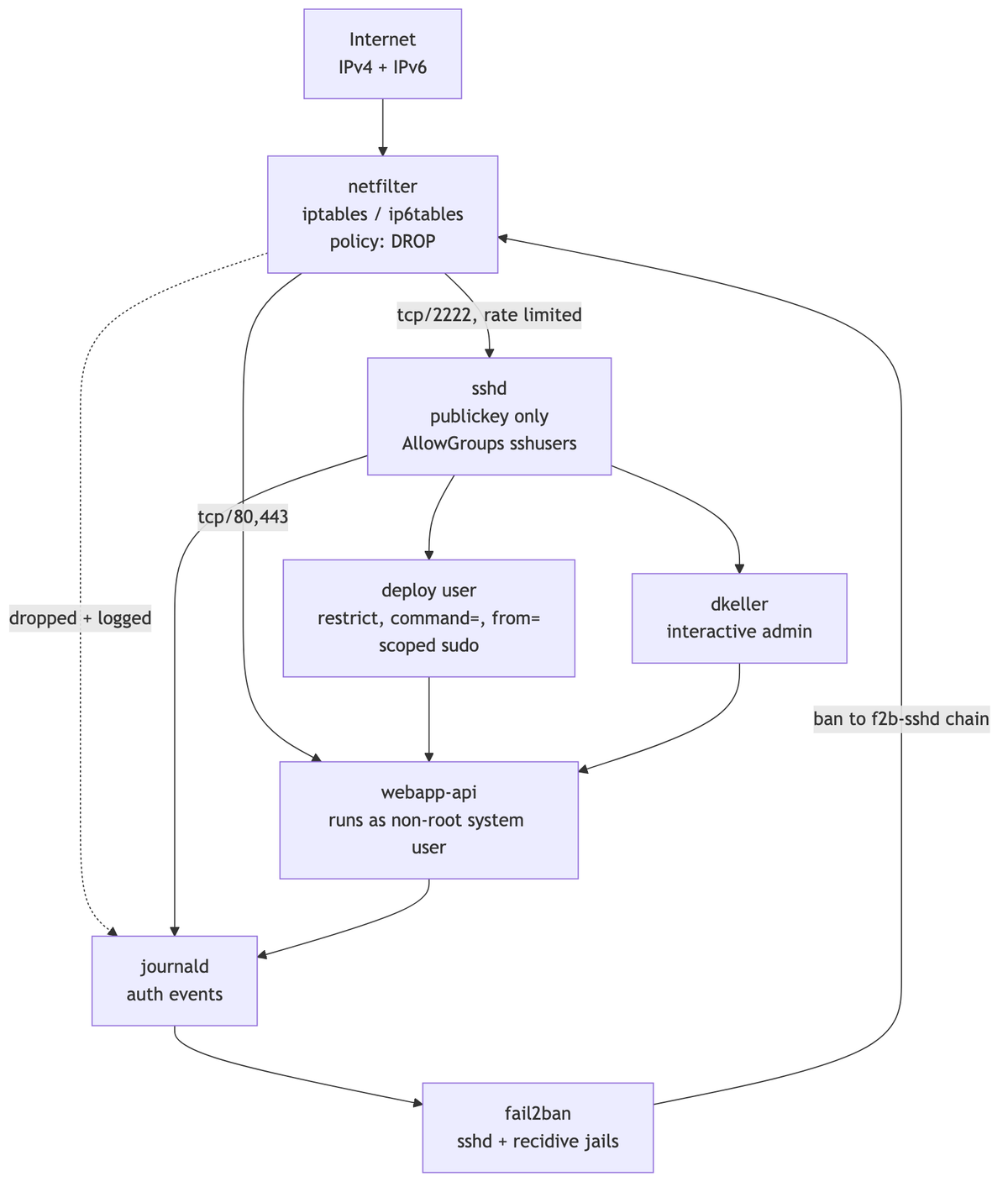
Mermaid source of the diagram
flowchart TD
    NET["Internet<br/>IPv4 + IPv6"] --> FW

    FW["netfilter<br/>iptables / ip6tables<br/>policy: DROP"]

    FW -->|"tcp/2222, rate limited"| SSHD["sshd<br/>publickey only<br/>AllowGroups sshusers"]
    FW -->|"tcp/80,443"| APP
    FW -.->|"dropped + logged"| LOG

    SSHD --> DEPLOY["deploy user<br/>restrict, command=, from=<br/>scoped sudo"]
    SSHD --> ADMIN["dkeller<br/>interactive admin"]

    DEPLOY --> APP["webapp-api<br/>runs as non-root system user"]
    ADMIN --> APP

    SSHD --> LOG["journald<br/>auth events"]
    APP --> LOG

    LOG --> F2B["fail2ban<br/>sshd + recidive jails"]
    F2B -->|"ban to f2b-sshd chain"| FW
The loop at the bottom is the point: logs feed Fail2Ban, Fail2Ban writes back into the same firewall that produced the traffic. If your log pipeline breaks, that loop silently opens, which is why "is fail2ban-client status sshd still counting?" belongs in your monitoring, not just in your build script.
Verify from outside the box
Never trust a hardening job you only checked from inside it.
# From your laptop
nmap -Pn -p- --min-rate 2000 91.99.184.22
nmap -6 -Pn -p 22,2222,80,443,5432,9100 2a01:4f8:c17:2b3::1

ssh -o PreferredAuthentications=password -o PubkeyAuthentication=no \
    dkeller@app-prod   # must fail with "Permission denied (publickey)"

ssh -p 2222 root@91.99.184.22        # must fail
# On the server
sshd -T | grep -Ei 'passwordauth|permitrootlogin|allowgroups|authorizedkeysfile'
ss -tulpnH | awk '{print $1, $5, $7}'      # anything on 0.0.0.0 or :: you didn't expect?
iptables -L INPUT -n -v | head -20
ip6tables -L INPUT -n -v | head -20
fail2ban-client status sshd
journalctl -u ssh --since "1 hour ago" | grep -i "accepted publickey"
systemctl list-timers 'apt-daily*' --no-pager

tar czf /root/hardening-baseline-$(date +%F).tar.gz \
    /etc/ssh/sshd_config.d /etc/ssh/authorized_keys /etc/iptables \
    /etc/fail2ban/jail.local /etc/sudoers.d/50-deploy \
    /etc/apt/apt.conf.d/20auto-upgrades /etc/apt/apt.conf.d/52-hardening-overrides
The ss -tulpnH output is the first thing I check after any deployment. A service that quietly binds :: when you assumed 127.0.0.1 is the single most common way a hardened box ends up exposed, and it happens after the hardening, when someone deploys a new container. Put it in a recurring check.
Then reboot. A firewall that doesn't survive a reboot isn't a firewall, and the only way to know is to do it while you're still watching:
reboot
# then, from your laptop, after ~30s
ssh app-prod 'iptables -L INPUT -n | head -5; ip6tables -L INPUT -n | head -5; systemctl is-active fail2ban ssh'
Deployment checklist
PREPARATION
□ Second SSH session open and idle
□ Console / rescue access confirmed with the provider
□ apt-get update && apt-get -y dist-upgrade
□ Timezone and NTP sane (timedatectl status)

USERS AND KEYS
□ Admin user created, added to sudo and sshusers
□ deploy user created, added to sshusers, no password
□ Application system user created with /usr/sbin/nologin
□ ed25519 keys generated on the client, separate key for CI
□ /etc/ssh/authorized_keys/<user> written, root-owned, 0644
□ restrict + from= on every key; command= on the CI key
□ /etc/sudoers.d/50-deploy validated with visudo -cf, chmod 0440
□ No unqualified systemctl in any sudoers rule
□ Key login verified in a NEW session before going further

SSH
□ 10-hardening.conf in /etc/ssh/sshd_config.d/
□ Conflicting cloud-init drop-in checked
□ Weak host keys removed (ecdsa, dsa)
□ sshd -t passes
□ sshd -T output matches intent (password auth off, root login off)
□ ssh.socket override applied if changing the port
□ systemctl reload ssh (not restart)
□ Password login confirmed to FAIL from outside
□ Root login confirmed to FAIL from outside

FIREWALL
□ iptables-save and ip6tables-save baselines written to /root
□ at-job rollback armed
□ IPv4 ruleset applied; policy set LAST
□ IPv6 ruleset applied; ICMPv6 types 1,2,3,4,128,129,133-137 allowed
□ Neighbour Discovery uses --hl-eq 255
□ SSH rate limiting active and verified
□ DOCKER-USER rules in place if Docker is running
□ Packet counters non-zero on the rules that should be hot
□ netfilter-persistent save
□ at-job disarmed

FAIL2BAN
□ python3-systemd installed
□ jail.local written; backend and banaction match the firewall toolchain
□ ignoreip includes bastion, office and VPC ranges
□ bantime.increment enabled
□ recidive jail on, logtarget is a real file
□ fail2ban-client -t passes
□ Ban tested from a non-ignored address, then unbanned

PATCHING
□ unattended-upgrades installed
□ 20auto-upgrades and 52-hardening-overrides written
□ Allowed-Origins limited to -security
□ Pipeline-pinned packages blacklisted
□ Dpkg::Options confdef/confold set
□ Reboot policy and staggered reboot time set
□ needrestart set to non-interactive
□ unattended-upgrade --dry-run clean
□ apt-daily timers listed and scheduled

VERIFY AND RECORD
□ nmap from outside, IPv4 and IPv6
□ ss -tulpn reviewed, nothing unexpected on 0.0.0.0 or ::
□ Reboot performed; rules, fail2ban and ssh all came back
□ SSH access re-verified after reboot
□ Config baseline tarball written and copied off-host
□ Monitoring alerts on: sshd down, fail2ban down, reboot-required older than 7 days
What this doesn't cover
Deliberately out of scope, but worth queuing next: AppArmor profiles for your application, auditd rules for the paths that matter, SSH certificate authorities instead of authorized_keys files (the right answer past roughly ten servers), centralised log shipping so that a compromised host can't erase its own evidence, and moving SSH off the public internet entirely behind WireGuard or an identity-aware proxy.
That last one supersedes about half of this article. Every control here assumes SSH has to be reachable from the internet. When it doesn't, delete the exposure instead of hardening it.
